Posted by admin on June 20, 2014 under Tech Tips | 
A while back, I wanted to find a tool that would go through my entire collection of MP3’s and remove all the extra ID3 tags I didn’t want. For example, when I purchase music from Amazon, Rhapsody, and other online music stores, there are a number of tags in the files that track things like the purchase date and sales transaction ID’s. I also like to get rid of annoying comments and other hidden tags that most editors won’t even show you.
In my search for a tool, I came across this very useful post outlining a similar project. In the authors quest to do the same thing, he came up with a shell script that searches for all MP3 files, and removes tags that are not in his list of “good” tags. I usually don’t like to rehash the work someone else has done, but since I use his script so often, I thought it would be useful to repost it with only minor modifications.
Prerequisite: Install eyeD3
The script requires the eyeD3 tag editor to parse and manipulate the tag data. So be sure to install eyeD3, which should be available in your favorite Linux repository.
sudo apt-get install eyed3
Save and Modify Script
Save the following script as strip-tags.sh somewhere in your executable path.
#!/bin/bash
# Script name: strip-tags.sh
# Original Author: Ian of DarkStarShout Blog
# Site: http://darkstarshout.blogspot.com/
# Options slightly modified to liking of SavvyAdmin.com

oktags="TALB APIC TCON TPE1 TPE2 TPE3 TIT2 TRCK TYER TCOM TPOS"

indexfile=`mktemp`

#Determine tags present:
find . -iname "*.mp3" -exec eyeD3 --no-color -v {} ; > $indexfile
tagspresent=`sort -u $indexfile | awk -F): '/^<.*$/ {print $1}'
| uniq | awk -F)> '{print $1}' | awk -F( '{print $(NF)}'
| awk 'BEGIN {ORS=" "} {print $0}'`

rm $indexfile

#Determine tags to strip:
tostrip=`echo -n $tagspresent $oktags $oktags
| awk 'BEGIN {RS=" "; ORS="n"} {print $0}' | sort | uniq -u
| awk 'BEGIN {ORS=" "} {print $0}'`

#Confirm action:
echo
echo The following tags have been found in the mp3s:
echo $tagspresent
echo These tags are to be stripped:
echo $tostrip
echo
echo -n Press enter to confirm, or Ctrl+C to cancel...
read dummy

#Strip 'em
stripstring=`echo $tostrip
| awk 'BEGIN {FS="n"; RS=" "} {print "--set-text-frame=" $1 ": "}'`

# First pass copies any v1.x tags to v2.3 and strips unwanted tag data.
# Second pass removes v1.x tags, since I don't like to use them.
# Without --no-tagging-time-frame, a new unwanted tag is added.  :-)

find . -iname "*.mp3"
-exec eyeD3 --to-v2.3 --no-tagging-time-frame $stripstring {} ;
-exec eyeD3 --remove-v1 --no-tagging-time-frame {} ;

echo "Script complete!"
|
To run the script, just execute it from the top level parent directory.
cd ~/Music/

strip-tags.sh
I really didn’t change a whole lot from the original, only making slight tweaks to eyeD3 options. For example, I removed colors from the eyeD3 output when creating the first list of tags, and added a line to remove v1.x ID3 tags since I don’t like to keep them around.
Be sure to edit the list of good tags identified by the “okaytags” variable. My preferred list includes the following:
oktags="TALB APIC TCON TPE1 TPE2 TPE3 TIT2 TRCK TYER TCOM TPOS"
|
TALB - Album/Movie/Show title

APIC - Attached picture (Album Art)

TCON - Content type (Genre)

TPE1 - Lead performer(s)/Soloist(s)

TPE2 - Band/orchestra/accompaniment

TPE3 - Conductor/performer refinement

TIT2 - Title/songname/content description

TRCK - Track number/Position in set

TYER - Year

TCOM - Composer

TPOS - Part of a set
Enjoy!
Posted by admin on July 20, 2008 under Tech Tips |
If you would like to convert your digital audio files to any number of available formats, SoundConverter is exactly what you’ve been looking for. Not only can you convert audio files in batch, but the application also maintains tag data and has a number of intuitive output options as well. The following is an excerpt taken from the projects home page.
“The sound conversion application for the GNOME environment. It reads anything the GStreamer library can read (Ogg Vorbis, AAC, MP3, FLAC, WAV, AVI, MPEG, MOV, M4A, AC3, DTS, ALAC, MPC, Shorten, APE, SID, etc…), and writes WAV, FLAC, MP3, and Ogg Vorbis files.”
Installing SoundConverter is a snap as most distributions have a binary package available, or you can build the latest version from source code. At the time of writing this aricle, Ubuntu 8.04 repositories have made available version 1.0.1, although the project is currently advertising 1.3.1. Yikes. A little out of date, but it still works extremely well.
Installing SoundConverter in Ubuntu/Debian
sudo apt-get install soundconverter
If you take a look at the preferences, you’ll also be pleasantly surprised to find a fine set of available options to control the quality of your newly converted files. Whether you are converting single files or entire collections, this SoundConverter is at your service.


Posted by admin on July 12, 2008 under Tech Tips |
There’s a number of MP3 tag editors available for the Linux platform, but there are two I use exclusively. EasyTag by far is the easiest and probably the most popular graphical MP3 tag editors available, and I use it a great deal for a majority of my MP3 tagging and renaming functions. For quickly identifying, converting and stripping unwanted tags, I use a python based command line application called eyeD3.
In my experience, EasyTag is the most versatile tag editor available. Some often wonder why on first launch that all of their tracks are highlighted in red and why it keeps prompting them to save changes that they didn’t make. This is because by default EasyTag writes both v1.1 and v2.4 tags to files it touches, and will attempt to automatically upgrade all v2.3 tags it has scanned. This behavior can be adjusted from “Settings… Preferences… ID3 Tag Settings”. If you have a player that is not compatible with 2.4 tags, then this is the place to change it back to v2.3. Uncheck the “Automatically convert old ID3v2 tag versions” option if you would like to stop that behavior. Personally, I also remove the option to save ID3v1.x tags.
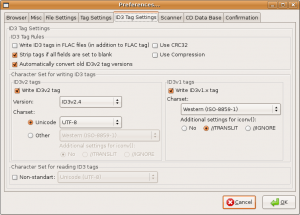
It’s easy to get a bit overwhelmed with all the options EasyTag has to offer, but the defaults are typically safe to use. Here’s a couple screenshots of the main user interface.
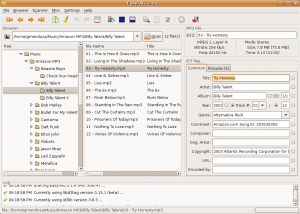
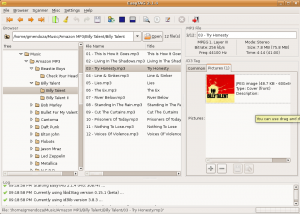
Other useful features include the ability to perform bulk file and directory renaming based on the tag data, or even set the tags based on the directory and file naming convention. You can clear all tags (be careful), and automatically populate tags from CDDB sources such as freedb.org, musicbrainz.org, and gnudb.org.
There are also a slew of command line tag editors each with their own strengths and weaknesses. The lack of 2.4 support plagues most of them, with the exception of eyeD3. This application is wicked cool. Not only does it support v2.4 tags but it also provides a very clean display of current tags using color and bold text. You can attach album art, add new or modify existing tags, and of course is easily scriptable.
Posted by admin on December 2, 2007 under Tech Tips |
If you have a number of audio files that you would like to convert to mp3, but don’t want to hassle with graphical applications, there is a simple way to accomplish the task using Linux, LAME and a little shell scripting. By performing a basic “for loop” to invoke LAME, you can easily convert any group of audio files using one line of shell code.
Here is an example of a “for loop” that runs the command “lame” against a set of files in your current working directory with the .wav file extension.
$ for f in *.wav ; do lame $f ; done
If your audio file names have spaces in them, then you will need to use quotation marks around “$f” variable.
$ for f in *.wav ; do lame "$f" ; done
I typically create my original audio files without the file name extension of .wav or .au. This is because when you run lame against a file name, and do not omit the extension in the output option, the resulting file will have two extensions in the file name. e.g. filename.wav.mp3. Yes, I can use sed or basename in the for loop to prevent this, but to keep it simple, I just choose to not use the file extension to begin with.
If you are working with a group of files that have all been named using the convention of “Artist – Album – ## – Track Title”, (notice the spaces in the name), the following will work.
$ for f in Artist - Album* ; do lame "$f" ; done
Once the job is finished, you will be left with a directory full of your original audio files, and your newly created mp3’s.
Extra Credit
Okay, since we’re on the topic of shell scripting. If you want to delete all the original audio files (the ones without any file name extensions), and without first moving the new mp3’s to a different directory, one overly complicated example would be the following.
for f in *.mp3 ; do AUFILE=`basename "$f" .mp3` ; rm "$AUFILE"; done
This would have been easier if the original files could have been identified with .wav extensions, (rm *.wav), but since they had no file extensions to begin with, a wild card alone would not work. Now folks, this is just an example, and there’s a million other ways you can go about this. But in any case, I hope it helps you start exploring on your own!